Creating an Invoice
First navigate to the Invoices sidetab in your account.
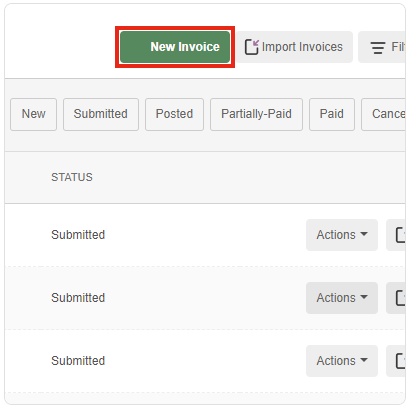
Next click New Invoice to open the Add Invoice window. (You can also create an invoice directly from a PO by clicking Create Invoice in the Purchase Order window.)
You can now choose or adjust the Customer/Account as needed.
To load a PO or POs to invoice, search for and select the POs from the PO Number drop-down menu, and click Load. The PO information loads in the invoice fields.
Next you'll complete and adjust any of the following fields as needed:
- Property
- Invoice Number
- Invoice Total
- Invoice Date
- Due Date
- Note
Helpful tip: A remaining balance is shown next to the Invoice Total field to indicate the amount of funds left to be charged to the customer. If the invoice was created from a PO, it starts by showing a negative amount remaining, and goes to 0 when the total matches the line items in the new invoice. If the invoice is manually created, it shows a positive amount, and goes down to 0 as line items and their amounts are added.
Note: All notes and attachments added are visible to the customer when they receive the invoice in Entrata.
If needed, at the bottom of the line item section, click Add Line Item. A new line item appears. The vendorcompletes and adjusts any of the following fields:
- Property
- Description
- Qty
- Rate
Finally, you'll click Save and Submit. The invoice is synced to their customer's invoice queue in Entrata, where it goes throughtheir approval process leading up to payment. If needed, you can also click Save Invoice to save the current invoice details, and then return to complete it before you submit it to your customer in Entrata.
Other helpful definitions:
After an invoice is created, there are several statuses an invoice can be in. This section lists each status and the actions that can take place within the status.
New: A new invoice that has been saved but not shared with your customer yet.
Submitted: Invoices in the Submitted status are still editable, and have been submitted to the customer.
Posted: The customer has approved and posted the invoice in Entrata. Invoices in the Posted status are no longer editable within VendorAccess. No further action is required on the invoice, and all subsequent statuses are for information purposes only.
Partially-Paid: The Partially-Paid status indicates that the customer has flagged only a portion of the invoice as paid. If you have not yet received any payment, this can indicate you'll receive a portion of the payment soon.
Paid: The Paid status indicates the customer has marked the invoice as being paid in full. If you have not received the payment, this status can indicate you'll receive it soon.
Cancelled: Invoices can be canceled by you or the customer. Invoices canceled by the customer do not have any additional actions available. Invoices canceled by you in VendorAccess can be re-opened. You can cancel an invoice by clicking Actions in-line with the invoice and selecting Cancel from the drop-down menu. To re-open a canceledinvoice, simply click the same drop-down and select Re-Open.