Compliance Requests
Any of your customers using Entrata have the ability to create compliance rule sets to ensure their property can keep track of necessary documentation. Once a customer has associated that rule set to your VendorAccess account, you'll be able to view the requirements and upload the supporting documentation. Here's an overview of how it works:
1.Scroll to Compliance in the sidetab to find properties that require compliance documentation.
2.Click on Requirements in-line with the property. The Customer Requirements window appears and the requested information will be displayed.
3.Depending on the requirements, click on each line to expand the section and complete it.
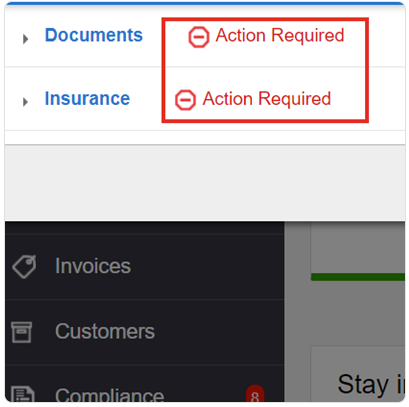
For Documents
Based on the document needing to be uploaded, the button can appear as one of these options:
- Upload Miscellaneous Document
- Upload W-9
- Upload Business License
- Upload Contract
In the Document window that appears, click Choose File, then locate the file on your computer.
Once the document is selected, the vendor adjusts or makes selections for the remaining fields as needed.
Finally, click Add and you'll be returned to the Customer Requirements window.
For Insurance
1. Click on Add Coverage in-line with the insurance requirement. The Add Insurance Coverage window will appear.
2. Under the Under the Add Certificate of Insurance Document section, click Choose File, then locate the file to upload from your computer.
3. Select a Legal Entity from the drop-down.
4. Adjust the Associated Properties drop-down as needed.
5. If required, you'll need to complete the Waiver of Subrogation and Additionally Insured sections.
6. Scroll down to the Select Insurance Policies Appearing on Document (COI) section and click the Add New Policy button.
Once all the required insurance information has been entered and documentation uploaded, click Add and you'll be returned to the Customer Requirements window.